


Analyzing survey data in Excel allows you to organize, visualize, and interpret your findings effectively. Follow these detailed steps to analyze your survey data using Excel.
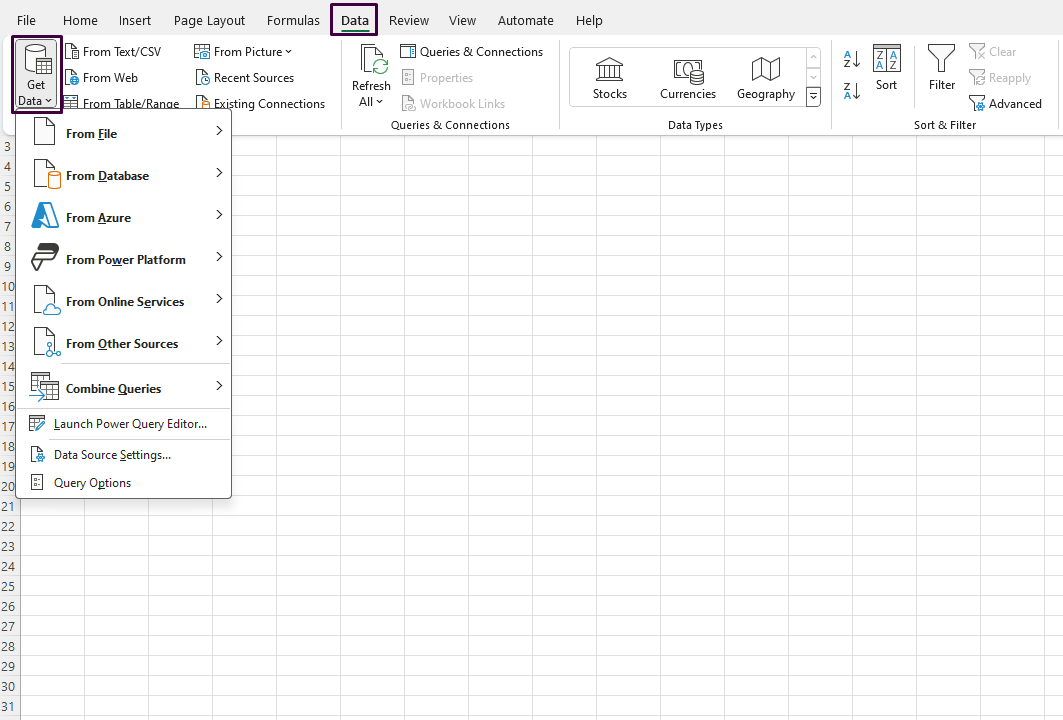
Step 1: Import Survey Data into Excel
- Launch Microsoft Excel on your computer.
- Open a new workbook by clicking
File>New. - Import your survey data by clicking
Data>Get Data(orFrom Text/CSV,From Web, etc., depending on your data source). - Follow the prompts to import your data and load it into the Excel workbook.
Step 2: Clean Your Data
- Go through your data to identify any incomplete or incorrect entries.
- Use the
Find & Selectfunction to locate blanks or errors (Home>Find & Select>Go To Special> selectBlanksorFormulas). - Correct or remove erroneous data entries and fill in any missing information as needed.
Step 3: Organize Your Data into Tables
- Select the range of your survey data.
- Go to the
Inserttab and clickTable. - Ensure the checkbox for
My table has headersis checked and clickOKto create a table.
Step 4: Use Formulas for Initial Analysis
- Use functions like
AVERAGE,MEDIAN,MODE,COUNTIF, andSUMIFto calculate basic statistics. - For example, to calculate the average of responses in column B: enter
=AVERAGE(B:B)in an empty cell. - Use
COUNTIF(range, criteria)to count occurrences of specific responses.
Step 5: Create Pivot Tables for Deeper Insights
- Click anywhere within your data table, then go to the
Inserttab and selectPivotTable. - Choose where you want the PivotTable report to be placed (New Worksheet or Existing Worksheet) and click
OK. - In the PivotTable Field List, drag and drop fields to the
Rows,Columns,Values, andFiltersareas to summarize your data.
Step 6: Visualize Data with Charts
- Select the data range you want to visualize.
- Go to the
Inserttab and choose from various charts likeColumn Chart,Pie Chart, orBar Chart. - Customize your chart using
Chart Toolsfor titles, labels, and styles.
Step 7: Use Conditional Formatting
- Highlight the range of data you want to format.
- Go to the
Hometab and selectConditional Formatting. - Choose a rule type like
Color Scales,Data Bars, orIcon Setsto highlight patterns within your data.
Step 8: Summarize Findings with Insights
- In a new worksheet, summarize key findings from your analysis.
- Use
Text BoxesandLink Cells(Insert>Text Box) to present data highlights. - Create a dashboard summarizing key statistics, visualizations, and insights for easy reference.
Step 9: Review and Save Your Workbook
- Review your analysis to ensure accuracy and completeness.
- Save your workbook by clicking
File>Save As, then choose a location and name for your file. - Consider saving a backup copy to prevent data loss.
Unlock genuine productivity with our affordable Office Keys, ensuring you have access to the latest Microsoft Office tools for all your needs.