


Adding motion path animation to objects in PowerPoint can provide dynamic movement to your presentations, making them more engaging. Follow these detailed steps to learn how to apply a motion path animation to an object in PowerPoint.
Step 1: Open Your PowerPoint Presentation
- Launch PowerPoint: Open Microsoft PowerPoint on your computer.
- Open a Presentation:
- Either create a new presentation by clicking on
Blank Presentation, or open an existing one by navigating toFile>Openand selecting your file.
- Either create a new presentation by clicking on
Step 2: Select the Slide
- Choose the Slide:
- In the Slide Navigation pane on the left, select the slide where you want to add the motion path animation.
Step 3: Insert an Object
- Insert Object:
- If the object you want to animate is not already on the slide, insert it by navigating to the
Inserttab. - Choose the type of object you want to add (e.g.,
Picture,Shape,Text Box). For example:- To insert a shape, click
Shapesand select your desired shape, then draw it on the slide.
- To insert a shape, click
- If the object you want to animate is not already on the slide, insert it by navigating to the
Step 4: Add the Motion Path Animation
- Select the Object:
- Click on the object you want to animate to select it.
- Go to the Animations Tab:
- Click on the
Animationstab located on the Ribbon.
- Click on the
- Open the Add Animation Dropdown:
- In the Advanced Animation group, click on
Add Animation.
- In the Advanced Animation group, click on
- Choose a Motion Path:
- Scroll down to the
Motion Pathssection in the dropdown menu. - Select a predefined path (e.g.,
Lines,Arc,Turn) or clickMore Motion Pathsfor additional options. - For example, select
Linesto see a simple linear motion path on the slide.
- Scroll down to the
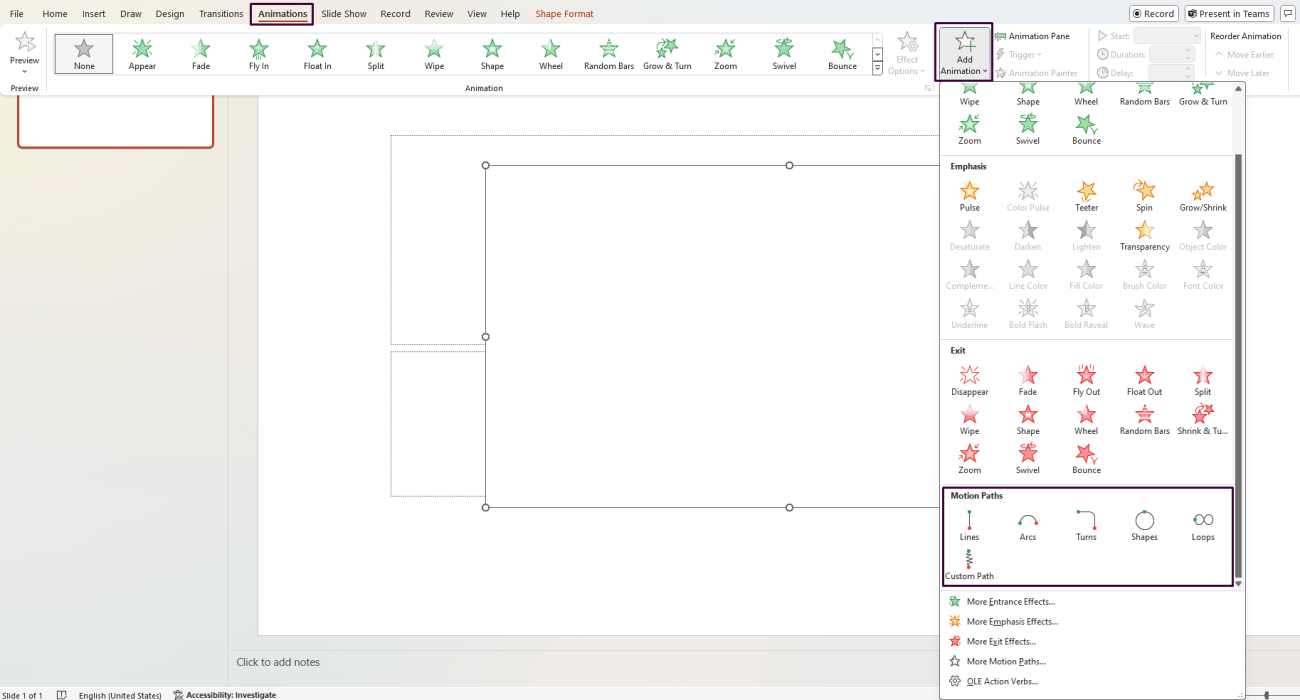
Step 5: Customize the Motion Path
- Select the Animation Pane:
- Click on the
Animation Panebutton within the Advanced Animation group to open the Animation Pane on the right side of your screen.
- Click on the
- Edit the Motion Path:
- Click on the arrow next to the motion path animation in the Animation Pane to open the dropdown menu, then select
Effect Options. - In the
Effect Optionsdialog box, you can customize the start and end points of the path:LockedorUnlockedoptions can fix or free the motion path relative to the slide.- Click
OKafter making your changes.
- Click on the arrow next to the motion path animation in the Animation Pane to open the dropdown menu, then select
- Manually Adjust the Path:
- If needed, adjust the motion path directly on the slide by clicking and dragging the red and green arrow endpoints to new positions.
Step 6: Adjust the Animation Timing
- Select the Timing Tab:
- In the
Effect Optionsdialog box, switch to theTimingtab.
- In the
- Set the Start Option:
- Choose when the animation starts:
On Click,With Previous, orAfter Previous.
- Choose when the animation starts:
- Modify the Duration:
- Adjust the
Durationfield to set how long the animation takes to complete.
- Adjust the
- Set Delay (Optional):
- Adjust the
Delayfield if you want the animation to start after a certain amount of time.
- Adjust the
- Click
OKto save changes.
Step 7: Preview and Fine-Tune
- Preview the Animation:
- In the Animation Pane, click the
Play Frombutton to preview the motion path animation.
- In the Animation Pane, click the
- Make Adjustments:
- If necessary, repeat the above steps to fine-tune the motion path, timing, and other effects.
Get genuine Office keys at unbeatable prices to unlock the full potential of Microsoft Office for your personal or professional needs.
Related Posts

The Best Image Editing Tricks in PowerPoint
You don’t need Photoshop to create eye-catching visuals for your slides - PowerPoint already packs a surprisingly deep set of picture-editing tools. From instan...
How to Add GIFs & Videos to PowerPoint Slides?
Static slides can only hold an audience’s attention for so long. A short GIF that illustrates a process or a video clip that drives home a key point instantly m...
How to Split Text with TEXTSPLIT in Microsoft Excel?
Managing text data in Excel can be challenging, especially when dealing with large datasets. Fortunately, Excel’s TEXTSPLIT function makes it easy to break text...
How to Use the IMAGE Function in Microsoft Excel?
Microsoft Excel is constantly evolving, introducing new features that enhance data visualization and usability. One of the latest additions is the IMAGE functio...
Excel’s OFFSET Function: A Hidden Gem Explained
Microsoft Excel is packed with powerful functions, but some remain underutilized despite their incredible versatility. One such function is OFFSET. While not as...
Master Excel’s IF, IFS, and SWITCH Functions
Microsoft Excel is one of the most powerful tools for data analysis and decision-making. Among its many features, logical functions like IF, IFS, and SWITCH pla...
Creating Fillable PDF Forms with Microsoft Word
Fillable PDF forms are a great way to collect information efficiently while maintaining a professional layout. Whether you need registration forms, surveys, app...
Using Word’s Outline View for Long Documents
When working with long documents in Microsoft Word, managing and structuring content can become overwhelming. Whether you’re writing a report, thesis, novel, or...
How to Use Microsoft’s Dictation Tool in Office?
Typing can be time-consuming, but Microsoft’s Dictation Tool makes it easier to create documents, emails, and presentations simply by speaking. Available in Wor...
The Future of Office: AI-Powered Features Explained
Artificial Intelligence (AI) is transforming the way we work, making office applications smarter, faster, and more intuitive. Microsoft Office, now part of Micr...
AI in Office: How Copilot is Changing Productivity
In today’s fast-paced work environment, productivity tools are evolving rapidly, and AI-powered assistants are becoming essential for efficiency. One of the mos...
PowerPoint’s AI-Powered CoPilot: What You Need to Know
Microsoft has revolutionized the way we create presentations with PowerPoint’s AI-powered CoPilot. This cutting-edge feature, integrated with Microsoft 365, use...