


PowerPoint Infographics are powerful visual tools that make complex data easier to understand and more engaging to your audience. With Microsoft PowerPoint, you can create stunning, professional-looking infographics without needing expensive design software. Whether you’re presenting data, explaining a concept, or telling a story, PowerPoint offers all the tools you need to craft compelling visuals.
In this guide, we’ll show you step-by-step how to create stunning infographics in PowerPoint.
Why Use Infographics in PowerPoint?
- Visual Appeal: Infographics are eye-catching and hold the audience’s attention.
- Simplify Data: Transform complex information into digestible visuals.
- Customizable: PowerPoint’s tools allow you to tailor your design to your needs.
- Accessible: PowerPoint is easy to use, even for beginners.
1. Define Your Purpose and Content
Before you start designing, outline your goals:
- What is the message? Clearly define the key takeaway of your infographic.
- What data do you need? Organize the data or information you plan to include.
- Who is your audience? Design with your audience’s preferences in mind.
2. Choose an Infographic Template
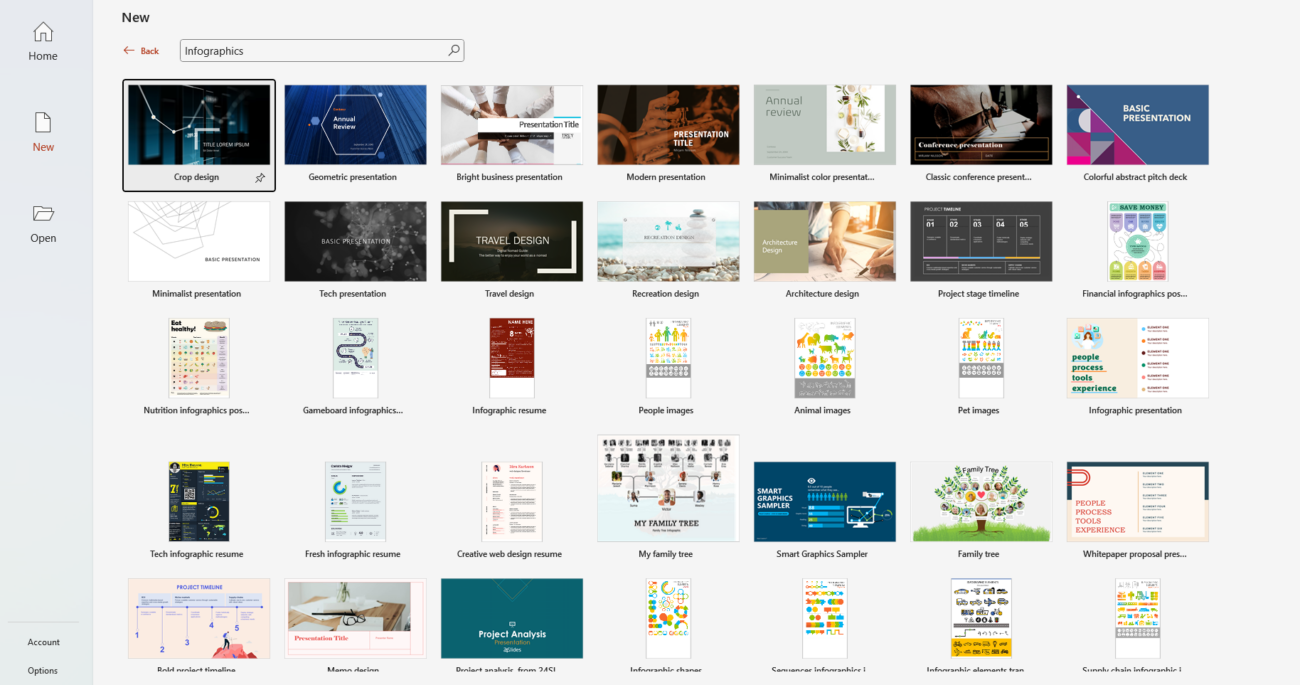
PowerPoint offers built-in templates for infographics. To find them:
- Open PowerPoint and go to File > New.
- Search for “infographics” in the template search bar.
- Choose a template that matches your theme or start with a blank slide for full customization.
3. Set Up Your Slide Dimensions
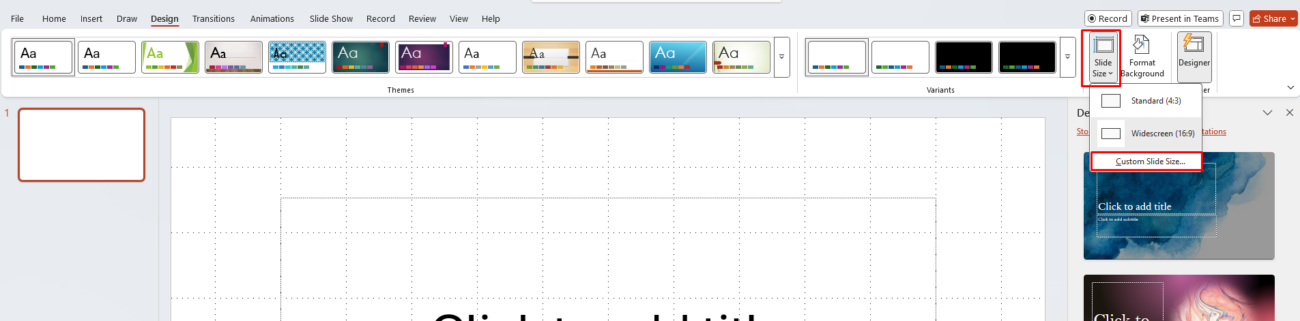
Infographics are often shared digitally or printed, so consider adjusting the slide size:
- Go to Design > Slide Size > Custom Slide Size.
- Choose 16:9 for screens or A4 for print.
4. Use Shapes and Icons
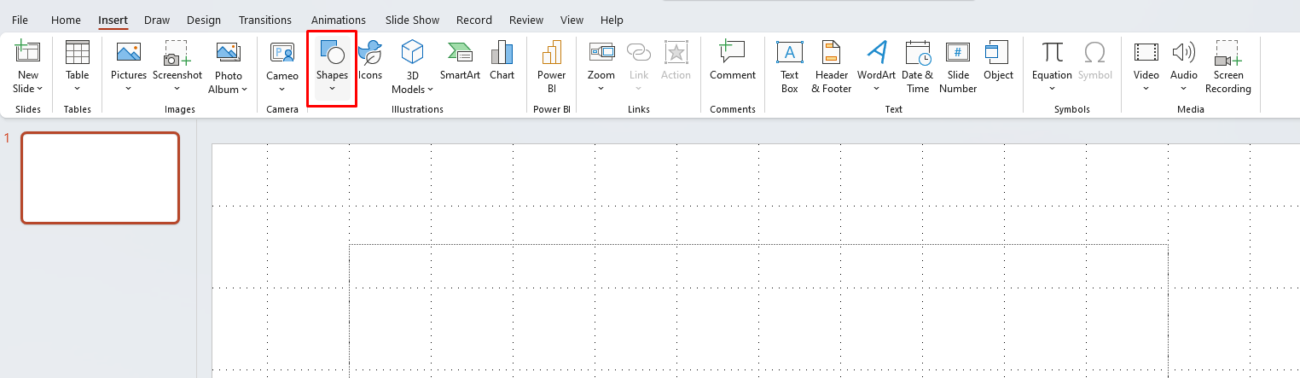
PowerPoint’s Shapes and Icons tools are perfect for creating infographic elements:
- Add Shapes: Go to Insert > Shapes to add rectangles, circles, arrows, and more. Combine them to create unique visuals.
- Insert Icons: Use Insert > Icons to add modern, scalable icons that enhance your design.
5. Visualize Data with Charts and SmartArt
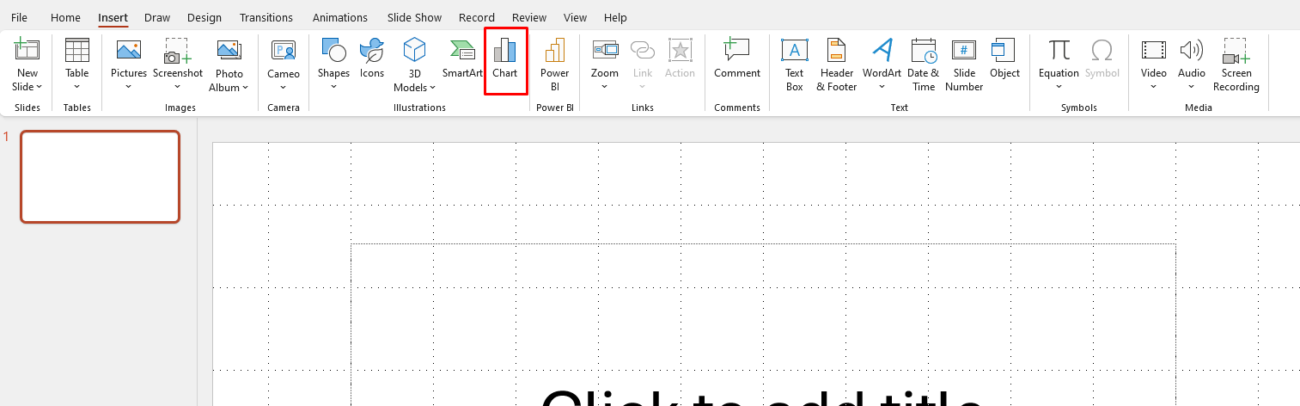
PowerPoint makes it easy to turn data into visuals:
- Charts: Go to Insert > Chart to create bar graphs, pie charts, or line graphs. Customize colors and labels to fit your theme.
- SmartArt: Use Insert > SmartArt to display processes, hierarchies, or relationships visually.
6. Choose a Consistent Color Scheme
A cohesive color palette makes your infographic look professional:
- Go to Design > Variants > Colors to choose or customize a color scheme.
- Use tools like Coolors or Adobe Color to find complementary palettes.
7. Use Typography Strategically
Your choice of fonts impacts readability and aesthetics:
- Use bold, legible fonts for headlines (e.g., Arial, Calibri, or Montserrat).
- Limit your design to 2–3 fonts for a clean look.
- Adjust font size to emphasize key points.
8. Add Images and Backgrounds
Enhance your infographic with images and backgrounds:
- Go to Insert > Pictures to add photos from your device or online sources.
- Use high-quality images that align with your message.
- For backgrounds, keep it subtle with gradients or textures.
9. Include Visual Hierarchy
Guide the audience’s focus by prioritizing key elements:
- Place the most critical information at the top or center.
- Use size, bold text, or bright colors to highlight key data points.
- Space out elements for readability—avoid overcrowding the slide.
10. Save and Export Your Infographic
Once your infographic is complete:
- Save your PowerPoint file as usual.
- Export as an image or PDF for easy sharing: File > Save As > PNG/JPEG or PDF.
- Use high resolution if printing your infographic.
Get the cheapest Office Keys with genuine licenses and instant delivery—unlock productivity without breaking the bank!